> ## Documentation Index
> Fetch the complete documentation index at: https://streamingtool.douyin.com/docs/llms.txt
> Use this file to discover all available pages before exploring further.

# 适用场景 {#5639d2ab}
针对常规绿幕背景可实现快速抠图，抠图效果比旧版好
# 使用教程 {#5b51b57d}

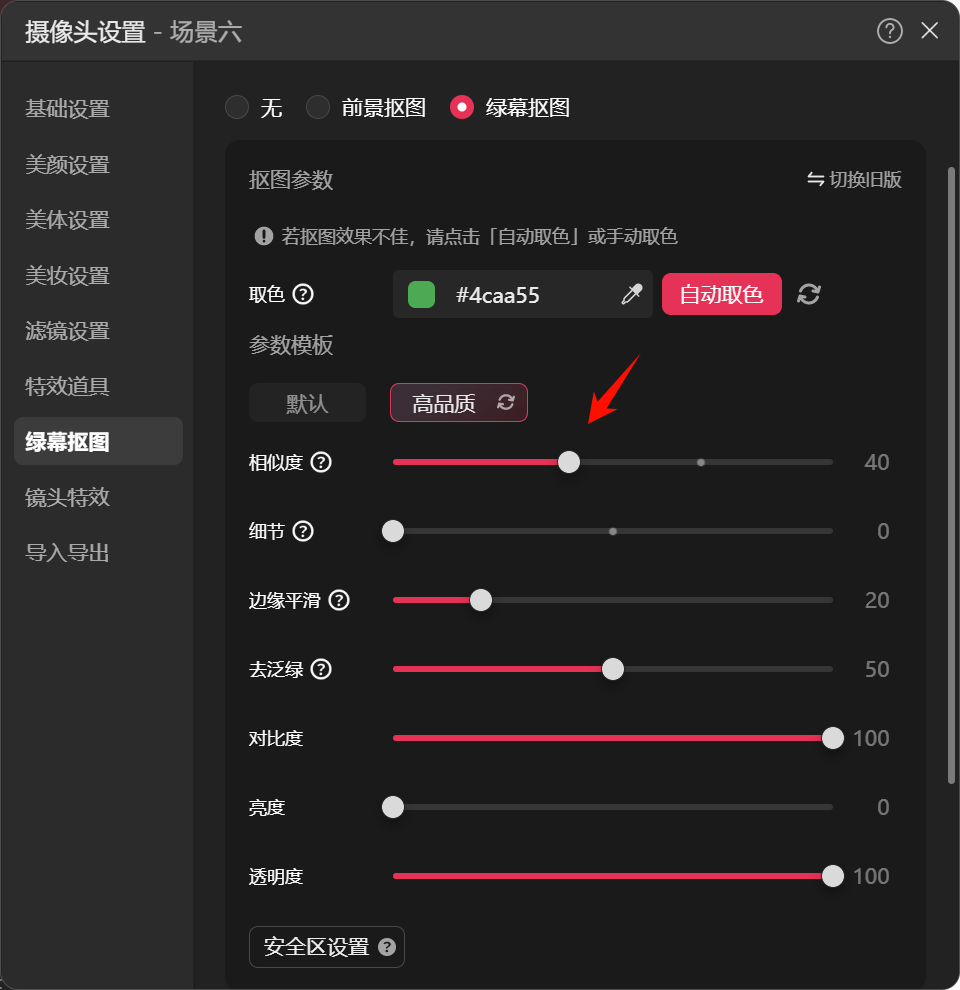
1. 打开摄像头设置，选择「绿幕抠图」，点击「切换新版」

<div style="text-align: center"><img src="https://p9-arcosite.byteimg.com/tos-cn-i-goo7wpa0wc/ab918e90c6424302a53596742393d0dc~tplv-goo7wpa0wc-image.image" width="390px" height="402px" /></div>


2. 点击「自动取色」。或者点击「吸管」按钮手动取色，取色时尽量选取贴近人物边缘的颜色


::::cols
@col 50
<div style="text-align: center"><img src="https://p9-arcosite.byteimg.com/tos-cn-i-goo7wpa0wc/3602183b19634c5aa9f3cd685dd06eaa~tplv-goo7wpa0wc-image.image" width="384px" height="396px" /></div>


@col 50
<div style="text-align: center"><img src="https://p9-arcosite.byteimg.com/tos-cn-i-goo7wpa0wc/a039c752d33b4c7f938b540eff75ed93~tplv-goo7wpa0wc-image.image" width="449px" height="424px" /></div>


::::


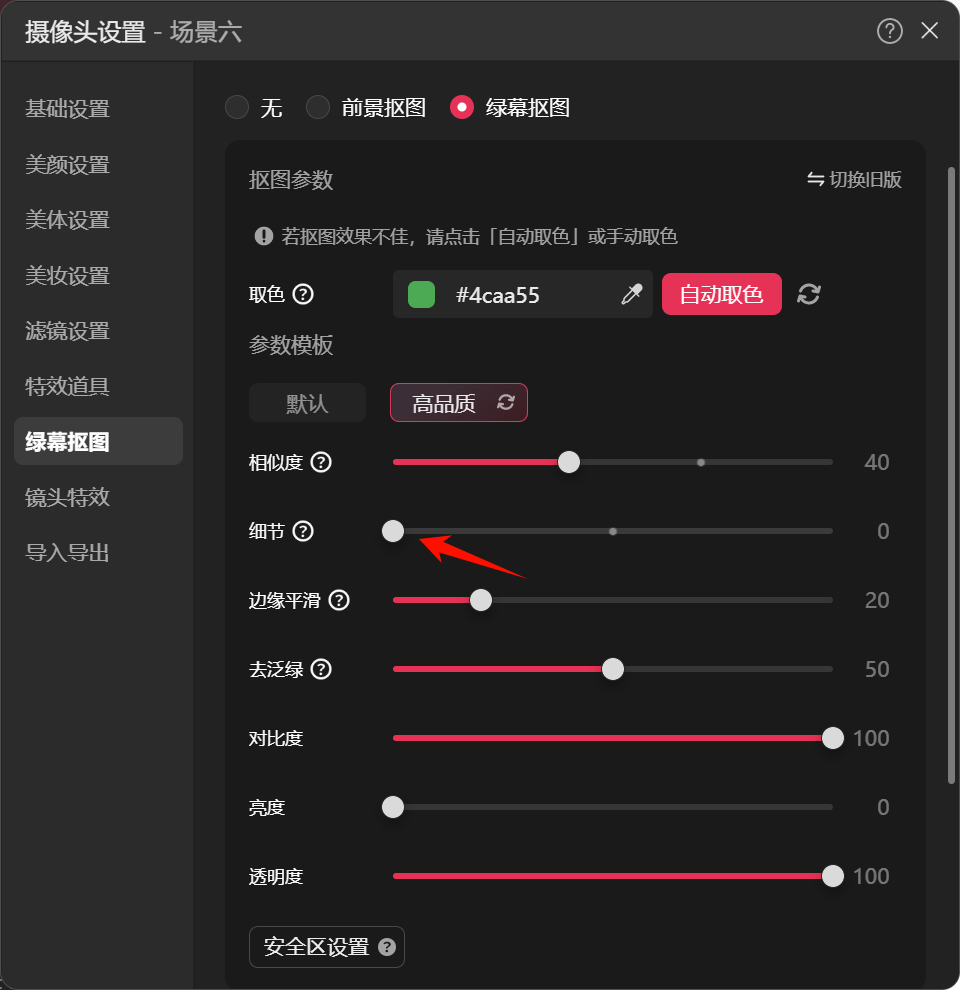
3. 如果对抠图效果不满意，可以微调各项滑竿的参数

<!-- @cols-width: 116,360 -->
| | | \
|**滑竿名称** |**滑竿用途** |
|---|---|
| | | \
|**相似度** |调节背景色剔除范围，若抠图范围过度可适当调低 |
| | | \
|**细节** |提升发丝细节效果，若出现了透明效果可适当调低 |
| | | \
|**平滑度** |减少人物边缘的锯齿感 |
| | | \
|**去泛绿** |降低背景反光对人物的影响 |


# **常见问题** {#a92dde30}
**Q1：抠图后呈现雪花状、斑驳效果怎么办？**
> 尝试降低「相似度」的数值


::::cols
@col 28
<div style="text-align: center"><img src="https://p9-arcosite.byteimg.com/tos-cn-i-goo7wpa0wc/d922ba3e4682498da79a81a56b1c7094~tplv-goo7wpa0wc-image.image" width="630px" height="1131px" /></div>


@col 71
![Image=416x429](https://p9-arcosite.byteimg.com/tos-cn-i-goo7wpa0wc/f0a36590d2e54f5d8fde5c62fc6b6b9d~tplv-goo7wpa0wc-image.image)

::::


**Q2：抠图后变透明了怎么办？**
>  检查「透明度」的数值，或尝试降低「细节」的数值


::::cols
@col 28
<div style="text-align: center"><img src="https://p9-arcosite.byteimg.com/tos-cn-i-goo7wpa0wc/a240af5a53dc4e79822ccc78ad25dcfe~tplv-goo7wpa0wc-image.image" width="639px" height="1132px" /></div>


@col 71
![Image=404x417](https://p9-arcosite.byteimg.com/tos-cn-i-goo7wpa0wc/e354ad31af0e45f7ade0fb6cace52244~tplv-goo7wpa0wc-image.image)


::::